
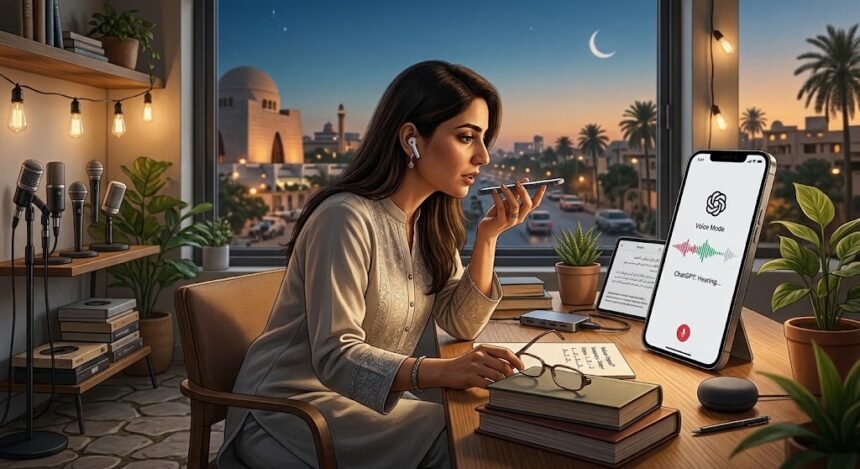
Can ChatGPT hear audio? Yes. ChatGPT offers audio features that let users speak to the AI, receive spoken responses, turn speech into text, and, on supported plans, upload audio recordings for transcription or analysis.
- Can ChatGPT Hear Audio?
- How Does ChatGPT Listen to Audio?
- How to Use ChatGPT Audio Features Step by Step
- Method 1: Start a Voice Conversation on a Computer
- Method 2: Use Voice on a Mobile Phone
- Method 3: Use Microphone Dictation
- Can ChatGPT Hear Audio Without Permission?
- ChatGPT Audio Features Compared
- What Are ChatGPT’s Audio Limitations?
- 1. Background Noise Can Affect Accuracy
- 2. Transcriptions May Contain Errors
- 3. Multiple Speakers Can Cause Confusion
- 4. Audio Uploads Have Restrictions
- 5. Voice Responses Can Be Incorrect
- Privacy: What Happens to Your Audio?
- How to Test Whether ChatGPT Can Hear You
- Frequently Asked Questions
- 1. Can ChatGPT hear audio?
- 2. Can ChatGPT listen to me through my computer microphone?
- 3. Can ChatGPT convert speech into text?
- 4. Can ChatGPT understand recorded conversations?
- 5. Is ChatGPT Voice available for free users?
- 6. Why can’t ChatGPT hear my voice?
- 7. Does ChatGPT store audio recordings?
- 8. Can ChatGPT hear audio in every language?
- 9. Can ChatGPT listen while it is speaking?
- 10. Does ChatGPT automatically record meetings?
- Conclusion
However, these features do not all work in the same way. Voice conversations allow you to speak naturally with ChatGPT, while dictation turns a recorded message into editable text. Audio file uploads can help you work with an existing recording, depending on your plan and the supported file format.
Understanding these differences can help you choose the right feature for your needs. Whether you want to ask a question without typing, dictate a long message, or summarize a recording, this guide explains how to use ChatGPT audio features, what to expect, and which limitations to keep in mind.
Can ChatGPT Hear Audio?
Yes, ChatGPT can process audio through supported features, but it does not automatically listen to everything happening around you.
You generally need to start a Voice conversation, activate the microphone for dictation, or provide a supported audio file. Your browser or device may also ask for microphone permission.
According to the official ChatGPT Voice guide, Voice supports natural spoken conversations and spoken replies. Dictation, meanwhile, converts a recorded message into text that you can review before sending.
Here is a quick comparison:
| Feature | What It Does | Best Use |
|---|---|---|
| ChatGPT Voice | Lets you speak and receive spoken responses | Questions and live conversations |
| Microphone dictation | Converts your spoken message into editable text | Writing prompts without typing |
| Audio file upload | Processes a supported recording | Transcription, summaries, and discussion |
| Record mode | Records and transcribes supported sessions | Meetings and voice notes, where available |
The options available to you can vary by plan, device, workspace settings, and application version.
How Does ChatGPT Listen to Audio?
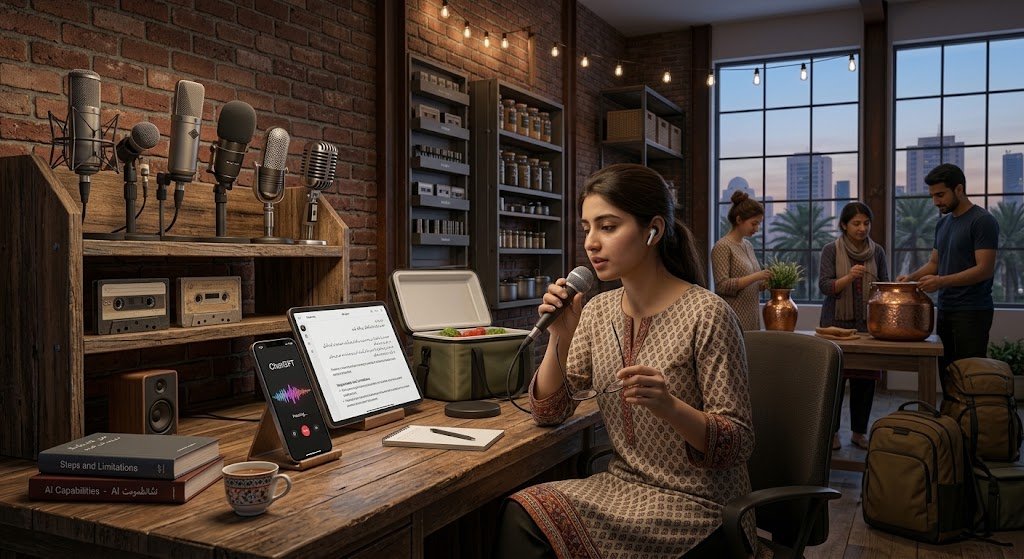
ChatGPT uses audio-processing technology to interpret speech or other information in supported audio inputs. The exact process depends on the feature you choose.
1. Voice Conversations
Voice mode allows you to talk to ChatGPT in a conversational way. You ask a question aloud, and ChatGPT responds with a spoken answer.
The Live Voice experience can listen and speak during the same conversation, allowing more natural back-and-forth interaction.
For example, you could ask:
- “Explain how solar panels work.”
- “Help me practice English conversation.”
- “Give me ideas for a weekend trip.”
- “Summarize this topic in simple language.”
You can also interrupt or continue speaking during a Live conversation, although background noise and overlapping speech can affect the results.
2. Microphone Dictation
Dictation is useful when you want to speak a message instead of typing it.
When you select the microphone icon for dictation, ChatGPT processes the recording and returns a text transcription. You can review and edit that text before sending it as a message.
This is particularly helpful for longer questions, quick notes, and people who prefer speaking to typing.
3. Audio File Uploads
On supported paid plans and workspaces, you may be able to attach an audio file to a conversation and ask ChatGPT to work with its contents.
For example, you could request a transcript, summary, or structured notes from a recording.
Supported formats listed in OpenAI’s audio upload documentation include MP3, WAV, FLAC, M4A, and certain other audio formats. Availability and upload limits depend on the feature and account.
Audio uploads are not currently available on the Free plan according to that documentation, although Voice and dictation are separate features.
How to Use ChatGPT Audio Features Step by Step
You can try ChatGPT audio features through the web interface or a supported mobile app.
Method 1: Start a Voice Conversation on a Computer
Follow these steps to talk to ChatGPT using your computer’s microphone.
- Open ChatGPT.
- Open a conversation or start a new chat.
- Look for the Voice icon in the message area.
- Select the Voice icon to start a conversation.
- Allow microphone access if your browser requests permission.
- Speak naturally and wait for ChatGPT to respond.
- Use the on-screen controls to mute or end the conversation.
The icon’s appearance and placement may change as the interface is updated. If you do not see it, check your browser permissions and the features available to your account.
Method 2: Use Voice on a Mobile Phone
The ChatGPT mobile app also supports Voice on eligible accounts.
- Open the official ChatGPT app.
- Sign in to your account.
- Open a conversation.
- Tap the Voice icon in the message area.
- Allow microphone access when prompted.
- Begin speaking after Voice opens.
- Use the microphone control to mute or unmute yourself.
If Voice is unavailable, update the app and review your account or workspace settings.
Method 3: Use Microphone Dictation
If you want to send a spoken prompt as text rather than have a live conversation, use dictation.
- Open a ChatGPT conversation.
- Locate the microphone icon used for dictation.
- Select it and begin speaking.
- Stop the recording when you finish.
- Review the transcribed text.
- Correct any mistakes and send your message.
Important: The microphone icon for dictation and the Voice icon serve different purposes. One creates a text message from speech; the other starts a spoken conversation.
For more information, read the official Voice Dictation FAQ.
Can ChatGPT Hear Audio Without Permission?
No. ChatGPT needs an appropriate audio input to process what you say. For live conversations and dictation, this generally means activating the relevant feature and granting microphone access when requested.
If microphone access is blocked, the feature may not work until you change your browser or device permissions.
On a computer, you can usually check microphone permissions through your browser’s site settings. On a phone, review the ChatGPT app’s permissions in your device settings.
ChatGPT does not need to be in Voice mode for every audio-related task. For example, you may be able to upload an existing audio file where supported without recording a new message through your microphone.
ChatGPT Audio Features Compared
Use this table to decide which feature fits your needs.
| Your Goal | Recommended Feature | What to Expect |
|---|---|---|
| Ask a question aloud | Voice | A spoken conversation |
| Write a long message by speaking | Dictation | Editable text |
| Turn a supported recording into text | Audio upload | Transcription where supported |
| Summarize a meeting recording | Audio upload or Record mode, if available | Summary or notes |
| Practice speaking a language | Voice | Interactive spoken practice |
| Work in a noisy environment | Text input or a recording in a quieter setting | Often easier to review and correct |
Not every feature is available to every user. Check the relevant product documentation before relying on a particular workflow.
What Are ChatGPT’s Audio Limitations?
Although ChatGPT can process audio, it is not perfect. Understanding its limitations helps you get more reliable results.
1. Background Noise Can Affect Accuracy
Traffic, music, fans, and other people talking can make speech harder to interpret. Even a good microphone cannot eliminate every source of interference.
For better results, speak in a quieter location, keep the microphone close enough to capture your voice clearly, and avoid speaking over other people.
2. Transcriptions May Contain Errors
ChatGPT may misunderstand names, technical terms, accents, numbers, or words that sound similar.
Always review important transcriptions before using them in professional documents, financial records, medical notes, or other sensitive work.
3. Multiple Speakers Can Cause Confusion
Live Voice is primarily designed for one-on-one conversations. When several people speak at once, ChatGPT may misunderstand who is speaking or respond to background conversation.
For meetings, use an available recording workflow and review the resulting transcript or summary.
4. Audio Uploads Have Restrictions
Uploading a recording depends on your plan, file format, file size, and available features. Some video files may not be accepted as audio uploads even if they contain sound.
Consult the official audio upload guide for supported formats and current restrictions.
5. Voice Responses Can Be Incorrect
ChatGPT can misunderstand your question or give an inaccurate answer, even when it correctly processes your speech.
For important decisions, verify factual claims using reliable sources. Clear audio improves input quality, but it does not guarantee that every answer will be correct.
Privacy: What Happens to Your Audio?
Audio privacy depends on which feature you use and your account’s data settings.
OpenAI explains that Voice audio clips are retained with the associated chat history for a limited period, with stated exceptions for security, legal requirements, or audio previously shared for training. Dictation audio has its own retention rules.
For consumer accounts, whether audio may be used to improve models depends on your data-sharing choices. Business products have different default data-use protections.
To review your options:
- Open ChatGPT settings.
- Find the Data Controls section.
- Review the available options related to model improvement and audio recordings.
- Turn off audio-sharing options if you do not want eligible new recordings shared for model improvement.
The exact wording and available controls can vary by interface and account type. Review the official Voice documentation and Dictation FAQ for current retention details.
If you record other people, obtain appropriate consent before recording them.
How to Test Whether ChatGPT Can Hear You
You can perform a quick test to confirm that your microphone and selected audio feature are working.
Simple Microphone Test
- Open ChatGPT and activate Voice or dictation.
- Say, “Please write down this sentence: Today I am testing ChatGPT audio.”
- If you are using dictation, inspect the transcribed text before sending it.
- If you are using Voice, check whether ChatGPT responds appropriately to your spoken request.
- Repeat the test in a quieter environment if the result is incorrect.
This test checks whether the feature can process your input; it does not guarantee perfect transcription in every situation.
Suggested Screenshots for Your WordPress Article
To make this guide more useful for readers, add your own screenshots from the current ChatGPT interface.
- Screenshot 1: The ChatGPT message area showing the Voice icon.
- Screenshot 2: The microphone permission prompt in your browser or device.
- Screenshot 3: The dictation interface showing the recorded message as text.
- Screenshot 4: The Data Controls settings relevant to audio and model improvement.
Capture these screens from your own interface, remove any private information, and add descriptive alt text. Interface layouts can change, so avoid using outdated screenshots that show controls readers can no longer find.
Frequently Asked Questions
1. Can ChatGPT hear audio?
Yes. ChatGPT supports Voice conversations and microphone dictation, and supported accounts may also be able to upload audio files. The available options depend on your plan, device, and settings.
2. Can ChatGPT listen to me through my computer microphone?
ChatGPT can receive microphone input when you activate a supported audio feature and grant the required permission. It does not automatically listen to your surroundings simply because you have ChatGPT open.
3. Can ChatGPT convert speech into text?
Yes. Dictation converts a spoken message into editable text. Supported audio uploads may also be used for transcription, depending on the available feature.
4. Can ChatGPT understand recorded conversations?
ChatGPT can process supported audio recordings on eligible plans and through supported workflows. It may produce transcripts, summaries, or notes, but errors are possible, particularly with multiple speakers or background noise.
5. Is ChatGPT Voice available for free users?
Voice is available to eligible Free users, subject to current feature availability and usage limits. Audio file uploads have separate restrictions and are not currently available on the Free plan according to OpenAI’s audio upload documentation.
6. Why can’t ChatGPT hear my voice?
Common causes include blocked microphone permissions, a muted microphone, an incorrect input device, browser problems, or unavailable features. Check permissions, verify your microphone, and restart the conversation if necessary.
7. Does ChatGPT store audio recordings?
Audio retention depends on the feature. OpenAI documents different handling for Voice conversations, dictation, and other audio workflows. Check the official privacy and data-control documentation for the rules that apply to your feature.
8. Can ChatGPT hear audio in every language?
Audio understanding and transcription support can vary across languages. ChatGPT may misunderstand an accent, pronunciation, or unfamiliar term, so review important transcripts and correct errors.
9. Can ChatGPT listen while it is speaking?
The Live Voice experience supports simultaneous listening and speaking, allowing natural interruptions. Background noise, overlapping speech, and connection conditions can still affect the conversation.
10. Does ChatGPT automatically record meetings?
No. You must start a supported recording or audio workflow. Record mode availability depends on the platform and account, and you should obtain the appropriate consent before recording other people.
Conclusion
So, can ChatGPT hear audio? Yes. ChatGPT offers several ways to work with sound, including live Voice conversations, microphone dictation, and supported audio file uploads.
Choose Voice when you want to talk naturally with AI, dictation when you want to turn speech into text, and an audio upload workflow when you need help with an existing recording. Remember that access varies by plan, and transcription quality can be affected by background noise, accents, and overlapping speech.
For the best results, test your microphone, review transcriptions, check your privacy settings, and consult official OpenAI documentation when feature availability or data handling matters